How to disable Chrome developer tools
March 2, 2015 / by Marco / Categories : Google, Technology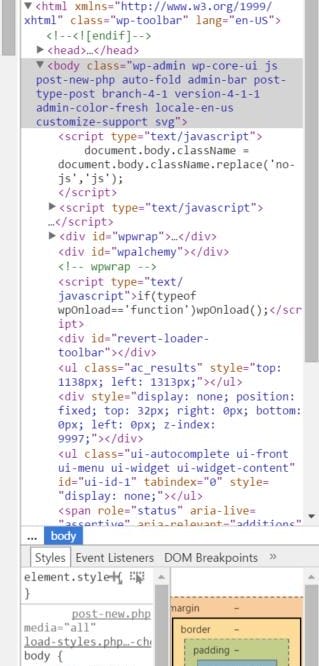
If you’re intending to use Chrome kiosk mode (read this article on how to achieve this) then it’s a must to disable the Chrome Developer tool as this is not disabled by default in Chrome.
What is the Chrome Developer tool?
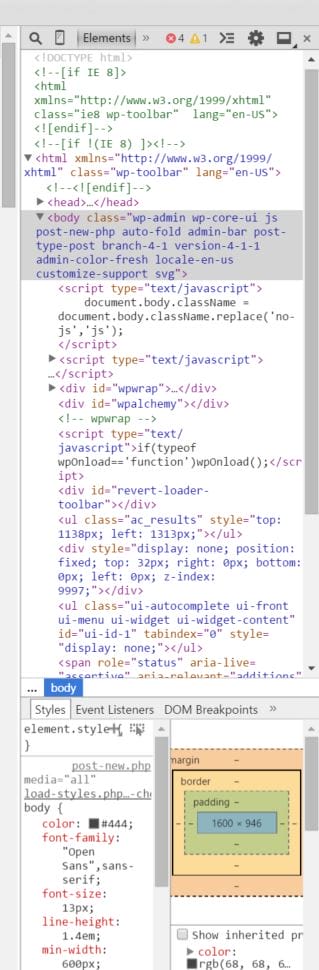
This is a useful built in tool in Chrome used by developer to debug, troubleshoot webpage issues. If you want to use this feature all you have to do is press F12 or Control – Shift – J or click on the Settings Icon at the top right hand corner (3 lines) then more tools and then select developer tools.
How do I disable this feature?
To disable this feature when using Chrome Kiosk Mode all you have to do is add the following lines in your Chrome Preferences file.
Edit the file C:\users\[your users account]\AppData\Local\Google\Chrome\User Data\Default\Preferences
Find the section with devtools and add the line “disabled”:true,
See below for example


"devtools": {
"dock_side": "undocked",
"disabled": true,
"split_location": 529
},
Save the file and restart chrome. Test by pressing F12 and you will noticed that the Developer tool options will not be displayed.

Marco / admin / 30 Nov
Writing day to day ramblings about making money, business, technology, sharing awesome deals and everything else that I know I'll forget. Follow my personal blog https://marcotran.com.au
I've recently also turned Vegan and started this website Veggie Meals - check it out
"When technology speaks for itself, that is art" - MT
Affiliate Compensated: there are some articles with links to products or services that I may receive a commission.
OTHER ARTICLES YOU MAY LIKE
STOP NOISY CALLS: THE ANDROID SETTING YOU SHOULD SWITCH ON TODAY
Phone calls still matter. Whether you’re speaking to a client, checking in with family, or handling something urgent on the move, clarity can make or break the conversation. If you’ve ever found yourself apologising for the construction noise behind you, the wind across your microphone, or the café chatter muddling your words, there’s an Android […]
read more
FILMORA 15 – WHAT’S NEW? AI EXTEND, DYNAMIC CAPTIONS, TRUE TIMELINE EDITING + INSTALL GUIDE
There is a particular thrill to installing a major new release of your everyday editor, especially when your workflow is comfortable and productive in the current version. That feeling is right at the heart of the move from Filmora 14 to Filmora 15. This upgrade promises fresh creative features, faster handling of complex projects, and […]
read more